arrow-left

All pages
gitbookPowered by GitBook
1 of 19

Loading...

Loading...

Loading...

Loading...

Loading...

Loading...

Loading...

Loading...

Loading...

Loading...

Loading...

Loading...

Loading...

Loading...

Loading...

Loading...

Loading...

Loading...

Loading...

intro.md

novnc

hashtag
Overview

Cloud desktop is a cloud-based virtual desktop environment which you can access with just your browser. It allows you to run intensive robot simulations without your computer breaking down.

hashtag
Features

  • Ubuntu 18.04

  • ROS Melodic

  • Web-based GUI

Web-based code editor
  • Optional GPU support

  • Brandeis Rover Cluster

    Author: Julian Ho julianho (at) brandeis.edu

    operation-guide

    For new operators, please please please read all the documentations here before proceeding!

    hashtag
    Questions and notes from Pito

    • exactly how and where is "supervisor" used?

    • Is the copy of tb3-ros in pitosalas still used for anything?

    • Using lens.app to look at and work with Rover cluster

    graphs

    architecture.md

    hashtag
    Overview

    The cloud desktop architecture is simple. On a high level, it looks like this:

    Overview

    hashtag
    Cloud Desktop Cluster

    Cloud desktop cluster is a cluster of cloud desktops. It is implemented as a K8s cluster for easy scheduling and orchestration of cloud desktop containers.

    hashtag
    Cloud Desktop Container

    The cloud desktop container provides a virtualized desktop environment that is isolated and portable. It consists of 3 components.

    • VNC server paired with a NoVNC server

    • VSCode server

    • Tailscale client

    For details, see .

    hashtag
    Networking

    K8s network:

    • Used for communication with the load balancer to allow each container to be accessible from a URL

    • Implemented with Flannel

    Tailscale network:

    • Used for communication between cloud desktops and robots globally

    • Managed with

    AWS Route53:

    • Provides DNS records for redirecting traffic to the cluster

    Container Imagearrow-up-right
    Tailscale Dashboardarrow-up-right
    arch network

    cluster.md

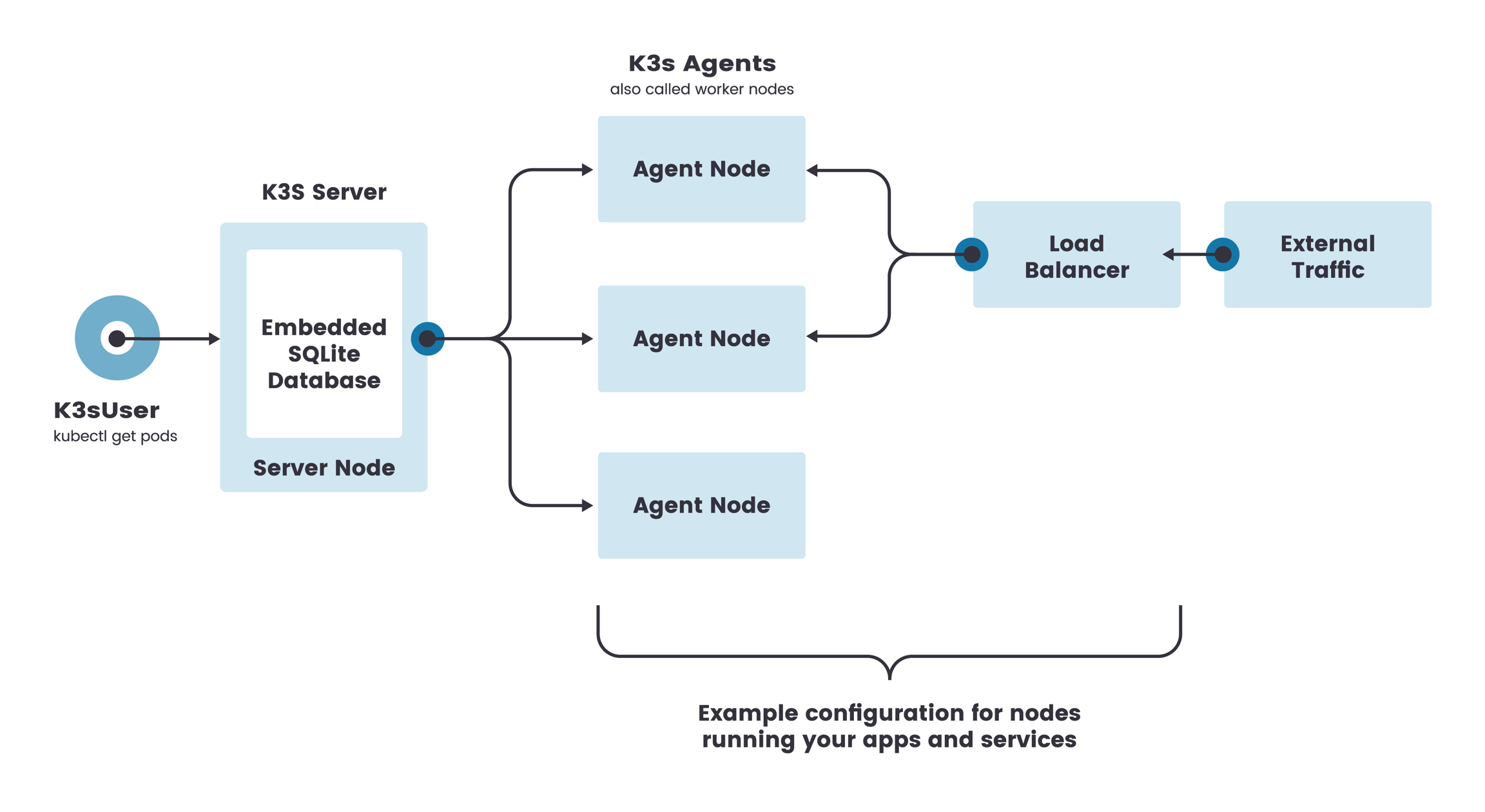
    Cloud Desktop cluster is managed by Kubernetes. Specifically, it is a distro of Kubernetes named K3sarrow-up-right.

    hashtag
    Management

    For cluster management, see Cluster Management.

    hashtag
    Configurations

    We use to run our k8s cluster. While leaving most configurations as default, we made the following customization,

    • container runtime: docker

    hashtag
    Namespaces

    • clouddesktop-prod

      • Main namespace

      • Used for all active cloud desktops

    hashtag
    Networking

    The default networking backend is flannel with VXLAN as backend.

    hashtag
    Ingress

    The default ingress controller is traefik.

    hashtag
    Storage

    The default storage provider is local-path. In other words, we store all cloud desktop files locally on the node.

    hashtag
    Node roles

    As of May 2021

    Name
    Role

    clouddesktop-dev

    • For testing cloud desktop images

    robotics-rover1

    Master

    robotics-rover2

    Agent

    k3sarrow-up-right
    K3s Architecture

    graphs.md

    nodes.md

    hashtag
    Overview

    Each nodes in the cluster is setup in a similar way. The software stack on a node looks like this:

    Software Stack

    hashtag
    Container runtime

    The default runtime is nvidia for all Nvidia-enabled nodes. For details, see /etc/docker/daemon.json.

    hashtag
    Software versions

    As of May 2021

    Name
    OS
    K3s Version
    Docker Version

    hashtag
    Node hardwares

    Name
    IP
    Hardware Configuration

    robotics-rover1

    Ubuntu 20.04.1

    v1.19.5+k3s2 (746cf403)

    Docker version 20.10.1, build 831ebea

    robotics-rover2

    Ubuntu 18.04.5

    v1.19.5+k3s2 (746cf403)

    Docker version 20.10.1, build 831ebea

    robotics-rover1

    rover1.cs.brandeis.edu

    12C/24T, 32GB, 1TB, RTX2060S

    robotics-rover2

    rover2.cs.brandeis.edu

    12C/24T, 32GB, 1TB, RTX2060S

    operating

    lifecycle.md

    hashtag
    Desktop Creation

    Desktop Creation

    hashtag
    Desktop Destruction

    Desktop Destruction

    user-guide

    sources.md

    All the source codes of Cloud Desktop is distributed in the following GitHub repos,

    • Cloud Desktop Image https://github.com/pitosalas/tb3-ros

    • Cloud Desktop K8s files https://github.com/campusrover/clouddesktop-k8s

    • Standalone Cloud Desktop https://github.com/campusrover/clouddesktop-docker

    users.md

    hashtag
    Requirements

    • kubectl Installation Guidearrow-up-right

    • terraform

    • AWS Credentials to AWS Route53

      • Access Key

      • Secret Key

    hashtag
    Setup

    First obtain the users repo from .

    Setup .env file by filling in all required fields:

    It's better to use an IAM user group to create a new user associated with the clouddesktop user group. It will generate a access and secret key for you to put in the above file. The ingress IP is the ip address of the main node. Once everything is properly setup, do:

    Setup terraform:

    hashtag
    Common Operations

    To under what each of these commands do under the hood, see .

    hashtag
    Add a new user

    id is the ID of the new user.

    hashtag
    Delete a user

    Warning: This will remove any persisted data!!

    hashtag
    Change resources allocation for user

    For user example, modify the file example-clouddesktop/deployment.yaml.

    hashtag
    To increase minimum resource

    For detailed explanation of what units you can change it to, see .

    hashtag
    To increase maximum resource limit

    For detailed explanation of what units you can change it to, see .

    hashtag
    Add GPU support

    Note: Beware if we have enough free GPUs in the cluster

    Note: Make sure the docker image is a CUDA enabled variant (ie. tb3-ros:v2.1.1-cuda)

    hashtag
    Apply changes

    Warning: This will restart the cloud desktop container!!

    To apply the previously changed values,

    hashtag
    Restarting a Desktop

    To restart a desktop, you need to delete and redeploy the desktop.

    This will NOT lead to loss of data.

    Setup Instructions
    Installation Guidearrow-up-right
    herearrow-up-right
    here
    herearrow-up-right
    herearrow-up-right
    mv .env.sample .env
    export $(make env)
    terraform init
    make add-user id=example
    make delete-user id=example
    resources:
      requests:  # increase minimum to at least 4 cores
    -   cpu: 2
    +   cpu: 4
        memory: 2Gi
    resources:
      limits: # increase to maximum 16GB of ram
        cpu: 8
    -   memory: 8Gi
    +   memory: 16Gi
    resources:
      limits: # increase to maximum 16GB of ram
        cpu: 8
        memory: 8Gi
    +   nvidia.com/gpu: 1
    kubectl apply -k example-clouddesktop
    kubectl delete -k example-clouddesktop
    
    kubectl apply -k example-clouddesktop

    desktop-ui.md

    novnc-desktop

    hashtag
    Access

    Login to the provided link http://vnc.USER.ros.campusrover.org and enter your password (should be provided to you by TA).

    novnc-login

    hashtag
    Control

    On the left you can find a panel for desktop control such as window scaling.

    Left panel:

    • Extra keys (ctrl-alt, esc key)

    • Clipboard (use this for copy-and-paste)

    • Fullscreen

    On the bottom is the taskbar (similar to the one in Windows).

    hashtag
    Window Scaling

    To make sure the desktop fits your browser window, go to Settings -> Scaling Mode -> Choose Local Scaling.

    hashtag
    Open Terminal

    To open the terminal, click the start button at bottom-left corner, go to System Tools -> Choose LXTerminal.

    hashtag
    Tailscale IP

    Each clouddesktop has a special IP for connecting to our global private network. The tailscale IP can be found on the terminal.

    hashtag
    Restart Desktop

    To restart the clouddesktop in case of a freeze, open a terminal in Code Editor, type restart.

    If that did not work, please reach out to your TA.

    Settings
    • Scaling Mode -> "Local Scaling" (always)

    window
    terminal
    tailscale ip

    cluster.md

    We administrate all our operations through the use of kubectl.

    hashtag
    Prerequisites

    Read up on the following materials,

    hashtag
    Requirements

    • kubectl

    hashtag
    Setup

    To access the K8s cluster, you will need to have a k3s.yaml credential file. It can be obtained by ssh into the master node of the cluster, under the directory /etc/rancher/k3s/k3s.yaml.

    Once you have obtained the k3s.yaml file, make the following modification,

    After the modification, this file is ready for use. Update your shell to always use this file,

    To confirm it working,

    hashtag
    Common Operations

    hashtag
    See all nodes in cluster

    hashtag
    See a specific node

    hashtag
    See all deployed pods

    • Notice that -n clouddesktop-prod refers to the clouddesktop-prod k8s namespace

    hashtag
    See a specific pod

    hashtag
    Draining a node

    K8s Conceptsarrow-up-right
    kubectl cheatsheetarrow-up-right
    Installation Guidearrow-up-right
    # Update with the IP of the master node
    - server: https://localhost:6443
    + server: https://123.123.123.123:6443
    export KUBECONFIG=/.../k3s.yaml
    kubectl get pods --all-namespaces
    kubectl get nodes
    kubectl describe node robotics-rover1
    kubectl -n clouddesktop-prod get pods
    kubectl -n clouddesktop-prod describe pod julianho-clouddesktop-deployment-abc123efg-123abc
    kubectl drain robotics-rover2

    faq.md

    hashtag
    User

    hashtag
    How do I add a new user?

    Read User Management.

    hashtag
    How do I delete a user?

    Read .

    hashtag
    How do I upgrade/downgrade a desktop?

    Read .

    hashtag
    How do I see all the active desktops in the cluster?

    hashtag
    Image

    hashtag
    How do I add a package to the image?

    Read .

    To make sure that new desktops are receiving this update, modify the deployment template under .

    hashtag
    Node

    hashtag
    Is it safe to restart a node?

    Yes, but make sure to drain the node first. To drain the node,

    After the reboot, k3s will be started automatically. If it is not started,

    hashtag
    Troubleshooting

    hashtag
    Desktop connectivity issue

    If a group or all desktops are not connecting,

    If only 1 desktop is not connecting,

    code-editor.md

    hashtag
    Access

    Login to the provided link http://code.USER.ros.campusrover.org and enter your password (should be provided to you by TA).

    hashtag
    Open a Folder

    To open a folder or file, go to File -> Open.

    hashtag
    Autosave

    VSCode allows auto-saving. This is super helpful in case of a crash. To enable it, go to File -> Choose Auto Save.

    hashtag
    Terminal

    VSCode comes with a terminal. This is the same terminal as the one in the Desktop UI. To open a new terminal, go to Terminal -> Choose New Terminal.

    vscode
    User Management
    User Management
    Adding a new package
    clouddesktop-k8s/clouddesktop-template/deployment.yamlarrow-up-right
    Debug Group
    Debug one
    kubectl -n clouddesktop-prod get pods
    spec:
      initContainers:
        - name: init-clouddesktop
    -     image: cosi119/tb3-ros:v2.1.1
    +     image: cosi119/tb3-ros:v2.1.2
    kubectl drain robotics-rover2
    sudo systemctl restart k3s.service
    open
    open
    open

    image.md

    Cloud Desktop Container uses a custom docker image. The Dockerfile is located herearrow-up-right.

    hashtag
    Internals

    hashtag
    Components

    There are 3 main components in the container image,

    • VNC server paired with a NoVNC server

    • VSCode server

    • Tailscale client

    hashtag
    Defaults

    Catkin Workspace: /my_ros_data/catkin_ws

    Ports:

    • novnc 80

    • vnc 5900

    • vscode 8080

    hashtag
    Layers

    The current container image is structured this way:

    cosi119/tb3-ros

    • Installs ROS melodic and ROS packages

    • Installs custom packages used in class, like prrexamples

    cosi119/ubuntu-desktop-lxde-vnc

    • Provides a Ubuntu image with novnc and lxde preconfigured.

    • Provides a CUDA enabled variant (image with -cuda tag suffix)

    hashtag
    Process Management

    hashtag
    Supervisord

    Each of the components are managed by a process control system called supervisord. Supervisor is responsible for spawning and restarting these components. For detailed configs, see .

    hashtag
    Modifing startup processes

    Modify the supervisord.conf under tb3-ros/tb3-ros/files/supervisor/supervisord.conf.

    hashtag
    Packages

    hashtag
    Default packages

    As of version 2.1.1,

    • turtlebot3_msgs

    • turtlebot3

    • turtlebot3_simulations

    hashtag
    Adding a new package

    To add a package to the default catkin workspace, modify the Dockerfile under tb3-ros/tb3-ros/Dockerfile:

    hashtag
    Github repo

    https://github.com/campusrover/prrexamples

  • https://github.com/campusrover/gpg_bran4

  • supervisord.confarrow-up-right
    pitosalas/tb3-rosarrow-up-right
    Layers
    # Add the following lines
    WORKDIR /my_ros_data/catkin_ws/src
    RUN git clone --recursive --depth=1 https://github.com/ROBOTIS-GIT/turtlebot3_msgs.git
    getting-started.md

    hashtag
    Logging in for the first time

    You should receive the following credentials for accessing your clouddesktop environment:

    • Desktop link

      • e.g. http://vnc.julianho.ros.campusrover.org

    • Code editor link

      • e.g. http://code.julianho.ros.campusrover.org

    • Password

    If you do not have those credentials, please reach out to your TA.

    hashtag
    Accessing your cloud desktop

    There are two ways to access your cloud desktop,

    hashtag
    Data storage

    Your data is securely saved on our servers and will persist on reboots.

    Desktop UI
    Code Editor